

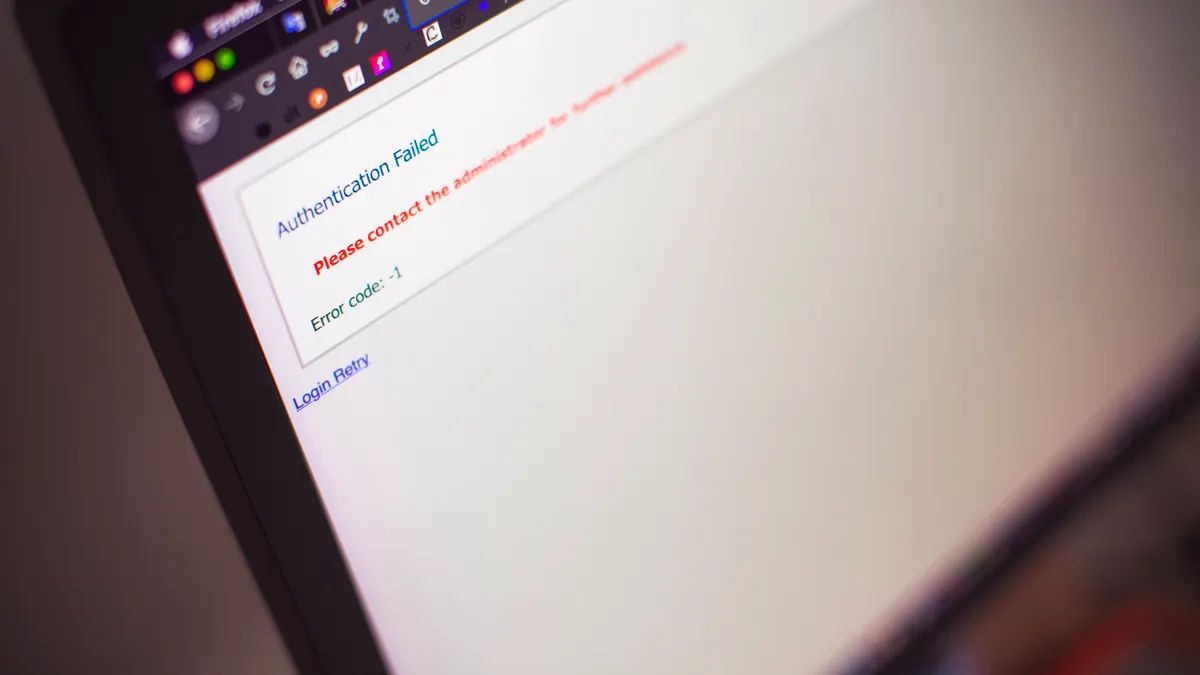
A failed automated publish in WordPress usually means the post is still salvageable, but the first job is to stop the system from making it worse. This…
Last updated: October 28, 2026
Key Takeaways
- Start with the post, the schedule, and the latest backup copy.
- Restore the last clean version, fix the scheduler or cron event, and republish from a verified copy.
- Repair the scheduler before trusting the next automated publish.
- Restoring the body text alone may not fix damaged metadata or fields.
A failed automated publish in WordPress usually means the post is still salvageable, but the first job is to stop the system from making it worse. This guide to how do you recover from a failed automated publish in WordPress? starts with the post, the schedule, and the last known good draft or scheduled post, then moves to logs, cron jobs, and a controlled republish.
What to check first after a WordPress publish failure
Start with the post itself, the schedule, and the last backup copy. If the post disappeared from the published state, look in Drafts, Pending, Scheduled posts, and Trash before you touch the database.
- Open the post in WordPress and check its status in the editor sidebar. You want to see whether it is Draft, Scheduled, Pending Review, or still marked Published.
- Go to Posts > All Posts and filter by the title, author, or date. A broken publish often leaves the item sitting in Scheduled with a past time stamp instead of moving it live.
- Check Trash and Revisions. If the content vanished after an automation step, the latest revision often contains the intact body and metadata.
- Confirm whether the site uses WP-Cron or a server cron job. If the scheduled event never fired, the issue may be the scheduler rather than the post content.
- Compare the current post against the most recent database backup and file backup. If the editor content is mangled, the backup tells you what to restore.
When this step works, you can say exactly where the failure sits: editor state, scheduler, plugin, or content damage. That matters because a scheduled post that missed its time and a post that published with corrupted content need different fixes.
A generic article usually jumps straight to “republish it.” That can double-post the content, overwrite a working revision, or hide a cron problem that will hit the next 20 posts too. The better move is to classify the failure before editing anything else.
How do you recover from a failed automated publish in WordPress?
You recover by restoring the last clean draft, repairing the schedule or cron event, and republishing from a verified copy. The goal is not just to get one post live; it is to preserve content integrity so the same failure does not corrupt the next scheduled post.
- Clone or export the broken post before changing it. Use the editor’s copy, a revision export, or a database backup. The result you want is a frozen reference copy you can compare against later.
- Restore the content from the latest revision or backup. In the block editor, open Revisions and roll back to the last version before the failed automation step. You should see the original headings, links, excerpts, and featured image fields back in place.
- Fix the publish state manually. Set the post to Draft if the content is incomplete, or set a fresh Schedule time if it was missed by the system. A successful change shows the correct status badge and a future publish time that matches your timezone.
- Check the automation plugin or integration for retry logic. If it has a queue, requeue the item once, not repeatedly. A correct retry should create one new attempt, not a pile of duplicate jobs.
- Verify the permalink, slug, excerpt, category, tags, and featured image before clicking publish. After a failed publish, those fields are the ones most likely to be out of sync with the content body.
- Publish or reschedule only after the post preview looks correct. The page should render with the expected title, date, and canonical URL, not a 404, a draft preview, or the wrong author. If the preview still looks odd, consult a WordPress professional and review the editor behavior against the documentation.
The cleanest recovery is often boring: one restored revision, one corrected schedule, one publish. Repeating the action three or four times is usually how duplicate posts and mangled metadata happen. If a plugin offers a “retry” button, use it once after you confirm the draft is intact.
This is also the point where a lot of people make the wrong trade-off. They fix the visible post and ignore the database backup. If the editor later shows a broken revision chain, the backup may be the only reliable way back to a known-good state.
Fix the cron job or scheduler that missed the publish
The scheduler must be repaired before you trust the next automated publish. In WordPress, missed publishes often come from WP-Cron not running on traffic, a disabled system cron, or a plugin that failed to hand off the job.
If the post was scheduled for 9:00 and is still sitting in the queue at 9:20, the failure is usually on the timing side, not the content side. Check these points in order:
- Confirm the site timezone under Settings > General. A 1-hour timezone mismatch can make a post look late even when the job fired correctly.
- Inspect the site’s cron configuration. If
DISABLE_WP_CRONis enabled, the server must callwp-cron.phpexternally; otherwise scheduled posts can stall until traffic arrives. - Review any automation plugin logs. Many plugins record the attempted publish, response codes, and a failure reason such as authentication, timeout, or write error.
- Look for plugin conflicts around 2 or 3 related systems: SEO tools, caching, editorial workflow, or custom fields. A publish hook can fail if another plugin intercepts the save.
If the scheduler works after your fix, the next queued post should move from scheduled to published without manual intervention. If it still misses, do not keep hitting publish. Repeated manual clicks can create duplicate status transitions or race conditions that are harder to unwind.
For deeper workflow design, the hub page on automated blog publishing workflow should sit beside this recovery guide, because recovery only makes sense when the publish path itself is already mapped.
Two sources are worth keeping close: the WordPress documentation on WP-Cron and the plugin’s own error-log guide, if it exists. The WordPress documentation at https://wordpress.org/documentation/article/cron/ is the first place to check before you guess at the cause.
Restore content without losing links, images, or metadata
Restoring the body text is not enough if the failed publish damaged the rest of the post. A good recovery preserves the full content package: headings, internal links, excerpt, schema fields, featured image, and custom fields.
The safest order is often body first, metadata second. Start with the latest clean revision, then compare it against the backup copy for these items:
- Headline and slug: A changed slug can break old links or create duplicate URLs.
- Featured image: Missing images are common after an interrupted save.
- Internal links: Check any links inserted by automation, especially if the tool rewrote URLs.
- Excerpt and SEO fields: Some plugins store these outside the main post body.
- Custom fields and blocks: Reusable blocks and meta boxes can revert differently from the post text.
If the content came from a backup, restore it into a staging copy first when possible. A staging pass gives you one extra check before the live post is exposed. If staging is not available, compare the live draft to the backup line by line in the editor.
A common mistake here is restoring the body and forgetting the taxonomies. That costs traffic and discoverability because the post may go live with the wrong category or no tags at all. The fix is simple: confirm the sidebar metadata before publishing, not after.
Content integrity matters most when automation transforms the post before it publishes. A failed transform can leave half-updated anchors, duplicated headings, or truncated blocks. If the output looks odd in preview, treat it as a content problem, and consult a professional if the issue persists. The WordPress developer documentation on revisions and the block editor can help you verify what changed before republishing.
Check logs before you publish again
Logs tell you whether the failure came from WordPress, the host, or the automation tool. A publish error that looks random in the editor often has a precise line in the log file.
Check these sources in this order:
- The WordPress debug log, if
WP_DEBUG_LOGis enabled. - The plugin-specific log panel, if the automation tool provides one.
- The server error log through your hosting control panel.
- The database backup timestamp versus the failed publish time.
You are looking for a timestamp, an error class, and a message that names the failing step. A 500 error, timeout, permission problem, or nonce failure each points to a different fix. If the log says the system tried to publish at 14:03 and then retried at 14:04, you now know whether the tool has retry logic already enabled.
If no log exists, turn on logging briefly while you reproduce the issue in a staging environment or during a controlled retry. Then turn logging back off if your setup normally keeps it disabled. Leaving debug mode on permanently can expose too much detail and clutter the filesystem.
This step can be the best place to notice when the problem is outside WordPress. A hosting timeout, file permission issue, or database connection drop will not be fixed by changing the post editor. The log tells you whether you need a content rollback or a server fix.
Common mistakes that turn one failed post into three
The biggest mistakes are republishing too fast, editing the wrong revision, and ignoring the queue. Each one costs time and can create duplicate posts or broken metadata.
- Republishing before checking the schedule: This can create a second post attempt or a duplicate status change. Do one manual recovery path, then wait for the queue to clear.
- Restoring the latest visible version without comparing revisions: The visible editor state may already include partial corruption. Compare against the revision history or backup copy.
- Forgetting timezone settings: A post that seems “late” may actually be scheduled correctly in another timezone. It is usually safer to verify the site timezone than to rely on your browser clock.
- Skipping logs: If you skip the log review, you will miss the reason the failure happened and repeat it on the next scheduled post.
- Assuming the publish button fixes everything: It only changes status. It does not repair a broken cron job, a failed API call, or a damaged custom field set.
The honest limitation is that some failures are not recoverable from WordPress alone. If the content was overwritten in the database and no backup exists, you may have to reconstruct the post from revisions, cached pages, or the automation source file. That is why backup discipline is part of recovery, not a separate topic.
If the same failure repeats twice, stop treating it like a content issue. At that point the problem is the publish pipeline, not the post.
What to do after the post is live again
After the post is back, do one clean verification pass and then move on. Open the live URL in an incognito window, confirm the title, date, canonical URL, and featured image, and make sure the post is indexed as the intended status, not still marked as draft somewhere in the backend.
Then confirm three things in the next 10 to 15 minutes: the cached version matches the live version, the automation queue cleared, and the next scheduled post still shows a future publish time. If the queue contains a retry with the same item ID, remove or mark it complete so it does not fire again.
If the failure exposed a gap in the workflow, write down the exact cause and the exact fix in your team notes. One short note about the plugin version, cron method, or backup source saves time the next time this happens.
The right recovery is usually calm, specific, and a little unglamorous: restore the post, fix the scheduler, verify the metadata, and keep the next job from failing the same way.
What happens when a scheduled post misses its time?
A missed scheduled post usually stays in the queue or shows as scheduled until WordPress or the plugin runs the publish job. The first check is the timezone and cron setup, because those two items explain many missed publishes. If the content is intact, you can usually reschedule it without rewriting the post.
How do you restore a post that failed to publish?
Restore the last clean revision or backup copy, then reset the post to Draft or Scheduled and publish it once. The key is to recover the content first and the status second. If the editor, logs, and metadata all match, the post should go live normally on the next attempt.
How do you prevent repeated failures?
Fix the cause, not just the post. That usually means checking WP-Cron, server cron, plugin logs, timezone settings, and retry behavior before the next automated publish runs. A single documented recovery step is not enough if the same queue or plugin settings can fail again 5 minutes later.
Drafted with AI; not yet reviewed by a person.