

1 dry run on staging, 1 normal pass, and 1 injected failure are the minimum checks to test an automated WordPress publishing workflow before launch. A…
Last updated: October 28, 2026
Quick Answer: 1 dry run on staging, 1 normal pass, and 1 injected failure are the minimum checks to test an automated WordPress publishing workflow before launch. A workflow testing plan for WordPress should catch broken drafts, missed cron jobs, bad webhook payloads, and accidental live posts before the first real publish. If the workflow is meant to run on a staging site, this is where it earns trust: with test posts, dry runs, and failure checks that mirror the real setup as closely as possible. This article is about how do you test an automated WordPress publishing workflow before launch?
Key takeaways
- Start on a staging site, not production, so a bad test cannot publish to real readers.
- Use test feeds and draft posts that match the real content shape, categories, authors, and featured images.
- Check the schedule path, the trigger path, and the publish path separately; one green check does not prove the whole chain works.
- Simulate failures on purpose: a disabled cron job, a 401 webhook response, a missing image, and a rejected draft.
- Do a final go-live pass with one post, not a batch, so the first error is easy to isolate.
What you need before you start
You need a staging WordPress site, a test source, and one documented publishing path before you can test the workflow well. That usually means a clone of the site, a feed or automation tool that can create posts, and access to cron jobs, webhooks, and post status settings. If the workflow spans three systems, all three need to be available in the test environment.
The point is not to see whether WordPress can publish a post in the abstract. The point is to see whether your exact chain does what it should when a draft enters the system, when a trigger fires, and when the scheduled time arrives. A workflow that depends on wp-cron.php, for example, behaves differently from one driven by server cron. A webhook-driven setup depends on payload format and endpoint response. Those are different failure surfaces.
Keep the test content simple but realistic. Use at least one draft post with a title, body copy, featured image, category, tag, author, and excerpt. If your live workflow uses custom fields, post types, or an SEO plugin, include those too. A stripped-down post can hide a broken integration. A realistic test post reveals it.
This is also the point to decide what “working” means. For a pre-launch check, success usually means the post is created, remains in the right status until the right moment, publishes once, lands in the correct category, and retains its media and metadata. If you do not define that in advance, you end up guessing later.
How do you test an automated WordPress publishing workflow?
You test it by running the full path in stages: create a draft, trigger the automation, confirm the queue, simulate the schedule, and inspect the published result. That sequence catches the most common breakpoints without guessing where the failure happened.
-
Create one test post with production-like fields.
Add a title, 300–500 words of body text, one featured image, the right author, and the same category or tag structure used on live posts. The result to expect is a draft that looks indistinguishable from a real post except for its test label. -
Point the automation at staging, not production.
Use the staging site URL, staging webhook endpoint, or staging feed URL in the integration settings. The result to expect is that the workflow writes only to the clone, never to the public site. -
Trigger the workflow once manually.
If the automation starts from a webhook, fire a single test payload. If it starts from a feed poll, force one refresh. If it starts from a queue, submit one item only. The result to expect is one new item in the queue or one new draft in WordPress. -
Check the queue or job log before publish time.
Look for the post ID, the scheduled timestamp, and any status changes. The result to expect is a clear record that the job moved from pending to queued, with no duplicate entries. -
Advance the schedule in a controlled way.
Set the publish time a few minutes ahead, then let cron or the scheduler run. The result to expect is the post changing from scheduled to published at the expected time, with no second publish event. -
Open the published post in WordPress and in the front end.
Confirm permalink, author, category, featured image, excerpt, and formatting. The result to expect is a live post that renders correctly in the theme, not just in the editor. -
Repeat the same flow with one failure injected.
Disable cron, break the webhook secret, or remove the image URL once. The result to expect is a logged failure, not a silent publish, and the workflow should recover cleanly after the fix.
This method is slower than clicking “Publish,” but that slowness is the point. A one-post dry run exposes the weak link without burying it in a ten-post batch.
Build a staging test that behaves like production
A staging test only helps if it copies the live path closely enough to matter. If the staging site is missing cron, caching, media access, or the same plugin stack, the test gives false comfort. The safest practical setup is a clone with the same WordPress core version, the same publishing plugin, and the same theme, even if the content is only 10 percent of the live library.
Start by confirming that the staging site can accept posts from the same source format as production. If the live workflow consumes RSS, use a test feed with one or two items and the same XML shape. If the live workflow uses a webhook, send the exact JSON structure the production system will send. If it uses direct database or API writes, test against the same endpoint and authentication method. A mismatch can produce a green test that says little.
Then check the time path. WordPress scheduled publishing depends on server time and cron behavior, so a three-minute test window is enough to reveal a problem without waiting half a day. Set one post to publish at 10:03 and confirm that the staging server time, timezone setting, and scheduler all agree. If the test only works after you manually load the site, you have found a cron dependency that needs attention.
Keep one browser window on the admin side and one on the front end. The admin screen shows state; the front end shows reality. A post that appears in the dashboard but 404s on the public side is still broken.
For a deeper validation pass, compare the staging result against the live template structure. The HTML should carry the same headings, image sizes, and link behavior. That kind of check is especially useful when the workflow includes content generation, because formatting problems often show up only after the post hits the theme. For setup guidance, the WordPress developer docs on Cron and REST API are useful references.
What should be checked before an automation goes live?
Before an automation goes live, the post state, the trigger, the schedule, and the output all need to match the launch plan. If any one of those is vague, the launch is too early.
Check the post state first. New content should arrive as draft, pending review, or scheduled — whichever state your process uses — and not jump straight to publish unless that is an explicit design choice. A workflow that publishes on arrival removes your last safety net.
Check the trigger path next. If the automation depends on a webhook, verify the secret, endpoint, and HTTP response. A 200 response means the destination accepted the request; anything else should be logged and retried according to your tool’s rules. If the automation depends on cron, confirm the server can run it without a browser visit. WordPress sites that rely on wp-cron.php may appear fine during manual testing and then stall under low traffic. The WordPress support docs on scheduled posts cover the core behavior.
Check queue validation after that. Every queued post should have a unique ID, a single scheduled time, and one author assignment. Duplicates are a sign that the trigger fired twice or the queue did not deduplicate correctly. Missing metadata is just as bad, because it can move the post into the wrong category or strip its featured image.
Check the output in at least two places: the editor and the public URL. The editor confirms the CMS state. The public URL confirms the theme, caching, and permalink behavior. If the page title displays but the image does not, the workflow is only partly correct.
One honest trade-off: broad automation saves time, but it hides failures unless you build in manual checkpoints. That makes it a poor fit for teams that want zero oversight. If you need total hands-off publishing, you are accepting more risk than a pre-launch test can remove.
For background on the broader system, the hub page on the automated blog publishing workflow can sit beside this one without duplicating the launch checks. You can also review related guidance on WordPress scheduling and content QA alongside the launch plan.
How to simulate failures without breaking production
You simulate failures by breaking one link at a time on staging, then watching whether the workflow logs the problem instead of publishing bad content. That is the way to find out whether the system fails loudly or fails silently.
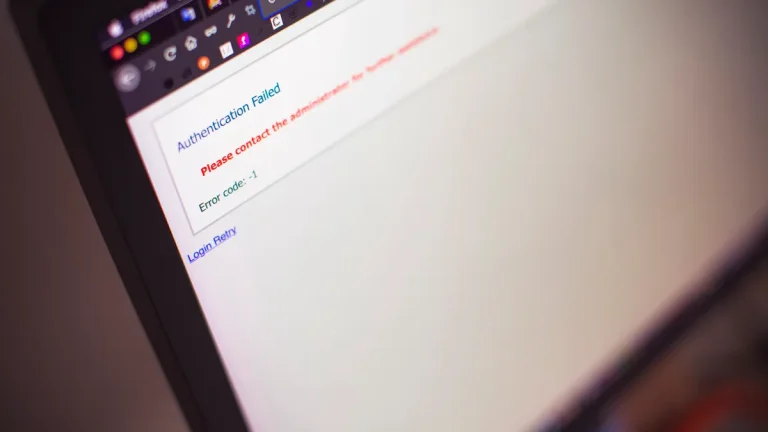
Start with a disabled cron run. If scheduled posts depend on WordPress cron, turn it off briefly or block the trigger path in staging. The result you want is an obvious missed schedule and a log entry, not a post that publishes late with no explanation. This matters because cron problems are often invisible until the site has low traffic or a cache layer in front of it.
Next, break the webhook on purpose. Change the secret, send a malformed payload, or point the sender at the wrong endpoint in staging. A good workflow should reject the request, record the reason, and leave the draft untouched. A weak workflow may partially create the post and then stop, which is harder to clean up than a clean rejection.
Then remove one required asset, such as the featured image or a custom field. The expected outcome is a blocked publish or a visibly incomplete draft, depending on the rules you set. If the post still publishes and looks broken, the workflow is too permissive.
Also test queue overflow with a small batch, even if production starts with only one post a day. A batch of 3 or 5 test posts reveals whether the scheduler preserves order, duplicates items, or skips one when two posts share the same minute. You do not need a load test here; you need proof that the queue handles more than a single happy-path item.
A failure simulation is not a stunt. It is the part of workflow testing that tells you whether your recovery plan exists in practice or only in documentation. For more on safe test environments, see staging site setup.
Common mistakes that hide launch-day failures
The biggest mistake is testing only the editor, not the pipeline. A draft that looks right in WordPress can still fail after the webhook, queue, or cron step. That mistake costs you time because the launch-day error appears in a different system than the one you checked.
Another mistake is using placeholder content that is too simple. A one-paragraph post with no image and no custom fields does not exercise the same code path as a real article. If your live workflow uses featured images, excerpts, or a post template, the test post needs those fields too.
Skipping the public view is another trap. WordPress can show a post in the admin screen while a caching rule, theme error, or missing image stops the front-end page from rendering correctly. The fix is simple: open the published URL in an incognito window after the scheduled run completes.
A quieter mistake is running several tests at once. If three posts are in flight, you cannot tell whether a duplicate publish came from the queue, the cron schedule, or the webhook retry. Test one post first, then two, then a small batch. That order gives you a clean trail.
Finally, do not treat a single successful run as proof. A workflow that works once at 9:00 a.m. may fail at 9:05 because of cache timing, timezone drift, or a retry rule. Run at least two passes in the same staging setup, one normal and one with an injected fault. If both pass, the workflow is much closer to launch-ready. If the setup or logs are unclear, consult a WordPress developer or systems professional before launch.
Go-live checklist for the first real publish
The first real publish should be a single post, not a queue full of content. That reduces the blast radius if one setting is still wrong.
Before you switch the workflow on, confirm the site is pointing at production URLs, the cron path is active, the webhook secret matches the live sender, and the test feed is no longer connected. Then clear any staging-only draft labels or test categories. A surprising number of launch failures come from leaving one staging rule in place.
Publish one post with close supervision. Watch the queue, wait for the schedule, and check the live page in a fresh browser session. If the post publishes once, lands in the right place, and renders cleanly, the workflow has passed the launch gate. If it fails, stop and fix that one issue before adding more posts.
This final pass is not about optimism. It is about keeping the first real content from becoming the test case.
How do you do a dry run for auto publishing?
A dry run is a full test pass on staging with one post, one trigger, and one scheduled publish time. Use a real draft, not a placeholder stub, and follow it through the queue, cron job, or webhook path until it lands on the public front end. If any step is skipped, it was not a dry run.
What should be checked before an automation goes live?
Check the post status, the trigger path, the queue entry, the scheduled time, and the public URL. The result should be a single post that publishes once, keeps its metadata, and renders correctly in the theme. If the workflow depends on wp-cron.php, also confirm the cron path works without manual page visits.
How do you verify a wordpress publishing workflow?
Verify it by tracing one post from creation to public display. The workflow is valid only if the draft enters the right state, the automation fires, the queue records the job, the scheduler publishes on time, and the front-end page matches the editor output. Then repeat once with a controlled failure so you know the logs and recovery path work.
Drafted with AI; not yet reviewed by a person.