




If you want to import content sources into a WordPress auto blog, the short answer is: connect the source, map the fields, set the import rules, and…
Last updated: October 10, 2026
Key Takeaways
- RSS is the cleanest choice when the source already exposes it.
- Use an RSS aggregation plugin before trying other methods for RSS sources.
- CSV, XML, and API imports work well when each field is mapped correctly.
- If there is no RSS feed and no API, scraping can be a fallback, but it is fragile.
Quick Answer

If you want to import content sources into a WordPress auto blog, the short answer is: connect the source, map the fields, set the import rules, and decide how much editing happens before a post goes live. For a typical setup, expect 10 to 30 minutes for a simple RSS import and 1 to 2 hours for a structured CSV, XML, or API workflow, depending on field count and media handling. The right path for how do you import content sources into a WordPress auto blog? depends on whether you’re pulling from RSS, CSV, XML, APIs, or a scraper, because each one fails in a different way.
What actually determines the right import method
If your source already exposes an RSS feed, then RSS is the cleanest route. If you have a spreadsheet, product feed, or item list, then CSV or XML is usually better. If the source has an API, use that before you touch scraping. If the site has no feed and no API, scraping can be the fallback, and it is the option most likely to break when the markup changes.
The choice matters because “import content” can mean four different jobs: grab post titles and excerpts, pull full text, sync media, or schedule automatic publishing. A plain RSS importer can handle the first two, but it often misses images, categories, author names, and custom fields. A plugin like WP All Import can map structured data well, while autoblogging tools such as Feedzy, WP RSS Aggregator, or cyberSEO can automate feed-based posting. For custom APIs, many site owners end up using Make, Zapier, or a small custom script through WordPress’s REST API.
For more on WordPress data handling, see the WordPress REST API Handbook and the WordPress Importer plugin page.
Here’s the key filter I would use: if the source changes often and needs no human judgment, automate more. If the source includes rewritten summaries, affiliate links, or legal-sensitive claims, keep a human in the loop before publish.
| Situation | Best Path | Why Other Options Fail |
|---|---|---|
| RSS feed with titles, excerpts, and images | RSS importer or autoblog plugin | CSV adds manual work; scraping is fragile |
| Spreadsheet of 100+ items | CSV import with WP All Import | RSS can’t handle structured columns well |
| Vendor product feed in XML | XML importer or feed mapping plugin | Manual posting does not scale |
| Source behind an API | API sync to WordPress REST API | Scraping is slower and more brittle |
| No feed, no API, public pages only | Scraper, but only if permitted | It breaks more often and can raise policy issues |
Quick check: If your source can already output RSS, CSV, XML, or JSON, you’re in a good place; if not, you may be building a brittle workflow from the start.
How do you import content sources into a WordPress auto blog?

You import content sources into a WordPress auto blog by choosing a tool that matches the source format, then mapping source fields to WordPress fields, then defining a publishing rule that controls what gets imported, how often, and whether it publishes immediately or waits for approval. If you skip the mapping step, you usually end up with broken titles, duplicate posts, or empty featured images.
A practical setup usually looks like this:
- Install the import tool that fits your source.
– For feeds: Feedzy, WP RSS Aggregator, CyberSEO Lite/Pro, or similar.
– For structured files: WP All Import.
– For APIs: Make, Zapier, or custom code through the WordPress REST API. - Add the source URL, file, or endpoint.
- Map fields carefully: title, excerpt, body, author, date, tags, categories, featured image, custom fields.
- Choose import rules.
– Import only new items
– Ignore duplicates by GUID, URL, or external ID
– Set a schedule, often every 15 minutes, hourly, or daily - Decide on content handling.
– Publish automatically
– Save as draft
– Run a moderation or rewrite step first - Test with 3 to 5 items before turning on full automation.
If you’re importing from RSS, the biggest trap is assuming the feed includes full content. Many feeds only expose excerpts, so the post on your site may look thin unless your plugin can pull the full article body from the linked page. If you’re importing from CSV or XML, the bigger risk is field mismatch: one missing delimiter can shift every value one column over.
I would choose a draft-first setup if the content is tied to ads, affiliate links, or anything that needs fact checking. I would choose auto-publish only when the source is yours, the format is stable, and the posts are low risk, like internal updates or product catalog entries.
Quick check: If you need the site to run with very little touch, you want scheduled import plus duplicate protection; if you need quality control, save first and publish later.
If your source is RSS, here’s the cleanest path
If your source is RSS, then use an RSS aggregation plugin before you consider anything else. RSS is the least painful input because it already carries a title, link, timestamp, and often a short description. That means less mapping work and fewer strange formatting errors.
A simple RSS workflow in WordPress looks like this:
- Install an RSS import plugin such as Feedzy or WP RSS Aggregator.
- Add the feed URL and confirm it returns valid XML in a browser or feed validator.
- Set the import type: full post, excerpt, or link-only.
- Map the feed title to the WordPress post title and the feed body to the post content field.
- Assign a category, author, and default featured image if the feed does not provide them.
- Turn on duplicate checks using the feed GUID or source URL.
- Schedule the fetch interval, such as every 30 minutes or once per day.
- Run a small test batch and inspect formatting, image handling, and link behavior.
The reason RSS works so well is also its limit: it only gives you what the publisher chose to expose. If the feed is truncated, your auto blog can look like a stream of teasers rather than actual posts. Some tools can pull the linked page and import the full article, but that is a different level of risk because you’re now depending on the source page structure, not just the feed.
If you want to keep the site cleaner, I would strip source links from the body and keep one attribution link near the end. That reduces clutter and helps you avoid creating a page that looks like a scraped mirror. If you need SEO value, raw duplication is the wrong direction; Google tends to reward the source, not your copy.
For feed validation and syndication basics, see the W3C Feed Validator and RSS 2.0 specification.
Quick check: If the feed already contains enough content and images, RSS is probably your fastest route; if it’s only an excerpt feed, expect to add another layer.
If your source is CSV, XML, or API data, use structured mapping
If your source is CSV, XML, or API data, then WordPress can handle it well as long as you map each field before import. This is a strong route for product catalogs, event listings, job boards, directories, and content libraries that come from another system.
The main advantage is control. You can tell WordPress exactly where each value goes: title into the post title, description into the body, SKU into a custom field, image URL into the media library, and category into a taxonomy term. Tools like WP All Import are strong here because they let you match columns or nodes visually, while APIs often need a connector such as Make or custom PHP that talks to the WordPress REST API.
Here is the workflow I would follow:
- Open the file or endpoint and inspect 5 to 10 records first.
- Confirm the file encoding is UTF-8 so accented characters don’t break.
- Decide whether the content should create posts, pages, custom post types, or WooCommerce products.
- Map each incoming field to the correct WordPress field.
- Set taxonomies, featured images, and custom fields.
- Define duplicate logic using a unique ID, SKU, or external slug.
- Choose an update rule: overwrite existing posts, skip unchanged rows, or create new records only.
- Run one import of 3 records, then expand to the full file.
The trade-off is that structured imports are unforgiving. A bad CSV delimiter, a missing closing tag in XML, or a null API field can wreck an entire batch. This method is not for someone who wants “set it and forget it” without checking the output. It is for someone who wants repeatable, predictable content with fields that stay in place.
If you’re dealing with products or listings, this is usually the right answer. If you’re dealing with posts from multiple third-party sites, RSS or API pulls are usually safer than forcing everything through CSV.
For structured imports, compare the WP All Import documentation with the WordPress REST API Handbook.
Quick check: If your source looks like rows and columns, structured import is the right lane; if it looks like web pages, it isn’t.
When scraping is the last resort
If the source has no RSS feed and no API, scraping can be the fallback, but I would treat it as the most fragile option. Scrapers depend on page structure, so a 1-line HTML change can break your importer overnight.
Use scraping only when all three of these are true: the site is public, the content is stable enough to parse, and you have permission or a clear legal basis to reuse it. If any of those are missing, stop there and choose another source or another workflow. That caution is not academic; scraping can run into terms of service issues, and it can also create copyright trouble if you republish text without the rights to do so.
If you do proceed, the workflow should be narrow, not broad:
- Identify the exact page template you want to pull from.
- Inspect the HTML selectors for title, body, image, and date.
- Build a parser with a plugin or custom code that targets those selectors.
- Limit the crawl to the smallest set of URLs possible.
- Store a source URL and timestamp for each imported item.
- Test on 2 to 3 pages, not 200.
- Check the output daily for breakage.
Scraping is wrong for fast-moving sites with frequent design changes, and it is wrong for anyone who needs low-maintenance publishing. It can be acceptable for internal archives, legacy sites, or controlled partner pages where the markup hardly changes. Even then, I would keep a fallback plan ready, because the selector that worked in March may fail in April.
For legal and technical background, review the WordPress REST API Handbook and the Mozilla Web Scraping Guide.
Quick check: If your import depends on brittle CSS selectors and the source redesigns often, scraping is probably too expensive to maintain.
The edge cases that break normal advice
If you’re dealing with special cases, then the usual “just use an importer” advice falls apart fast. A few situations need a different path:
- The feed only exposes excerpts. What changes: the body content is missing. What to do instead: import titles and links, then send readers to the source or use a tool that fetches the full linked page if you’re allowed to do that.
- The source changes every few minutes. What changes: import frequency matters more than the plugin name. What to do instead: use a queue or scheduled sync every 5 to 15 minutes, and add duplicate detection by GUID or external ID.
- You need WooCommerce products, not posts. What changes: product fields matter more than post text. What to do instead: use a product-aware importer like WP All Import with WooCommerce add-ons, not a general autoblog tool.
- You’re importing multilingual content. What changes: language tags, slugs, and translation workflow matter. What to do instead: map language metadata up front and decide whether each language is a separate post type or a translated variant.
- You need to import media-heavy posts. What changes: image hotlinking versus local downloads becomes the real issue. What to do instead: download media into WordPress when possible, and check file naming, dimensions, and copyright rights.
- You have multiple sources feeding one site. What changes: duplicates and category collisions get messy. What to do instead: assign source-specific tags, prefixes, or categories and keep one import job per source when possible.
This is where a generic auto blog setup usually fails: it treats every source like RSS from one publisher. Real import work is more like data plumbing. A 20-item source with clean fields is easy; a messy 8,000-item archive with changing structures is not. If the workflow is business-critical or touches copyrighted material, it is worth consulting a developer or legal professional before you automate it.
Quick check: If your source has custom post types, translations, or media rules, you need a tailored import plan, not a default one.
What to do before you let it publish automatically
If you want automatic publishing, then put guardrails in place first. Auto blogs go wrong when the source quality is assumed instead of checked. A bad headline, a broken image, or duplicated text can hit your site in minutes if there is no review layer.
I would use this order:
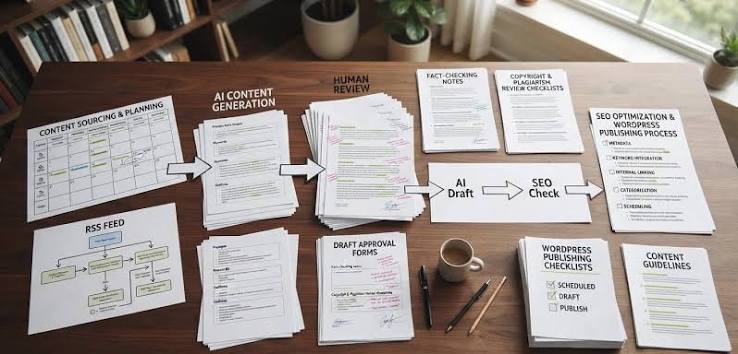
- Import 5 test items and inspect them in the WordPress editor.
- Verify category mapping, featured images, and excerpt length.
- Check that links point where you expect.
- Confirm the posts are not duplicating older items.
- Set an update schedule that matches the source cadence, such as hourly or daily.
- Decide which items publish immediately and which stay as drafts.
- Put alerts in place for failed imports or empty fields.
A good benchmark is simple: if you would not publish 3 test items without editing them, you should not auto-publish 300. The point is not perfection. The point is to catch the failure mode before it turns into dozens of thin or broken posts.
This is also the place to think about attribution and originality. If the content is not yours, I would not build a system that republishes full posts from other publishers and calls it an auto blog strategy. That setup is fragile for SEO, risky for rights, and often poor for readers. A better use of automation is to import source items, add your own commentary, and publish with clear attribution when you have permission.
Drafted with AI; not yet reviewed by a person.