




A post set for 9:00 a.m. can land at the wrong hour if the site clock is off. That is the part people miss. To schedule and queue WordPress blog posts…
Last updated: October 10, 2026
Key Takeaways
- Set a future publish date in WordPress, then save the post as scheduled.
- A queue releases posts in order, often with a gap between each one.
- The block editor is the simplest place to schedule posts; a content calendar can help.
- Use a plugin or workflow tool when you need posts to publish in sequence.
A post set for 9:00 a.m. can land at the wrong hour if the site clock is off. That is the part people miss. To schedule and queue WordPress blog posts without babysitting the dashboard, you need a publish time and a way to handle the posts lined up behind it. How do you schedule and queue automated blog posts in WordPress? WordPress handles both with the built-in scheduler, and plugins can turn that into a real queue if you need spacing, staging, or multi-author control. On a site set to UTC+0, a post scheduled for 9:00 a.m. can go live at the wrong local hour if the timezone is off.
How do you schedule a blog post in WordPress?

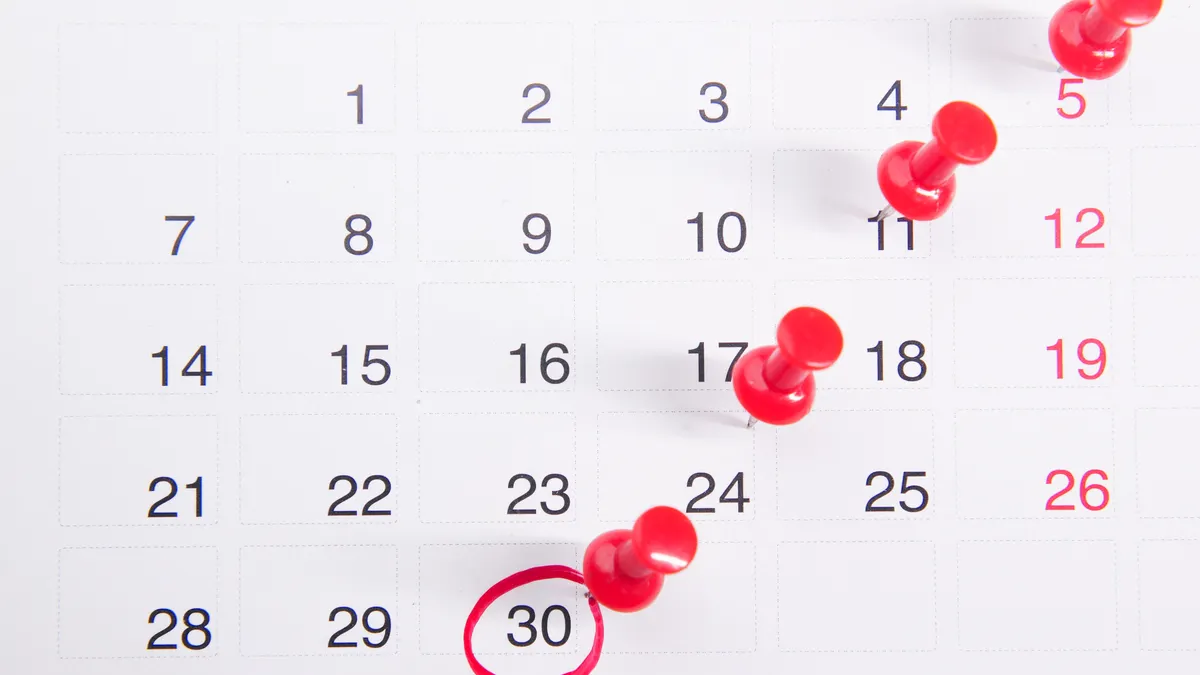
Set a future publish date in the post editor, then save it as scheduled instead of clicking Publish right away. If you only need one post to go live at 9:00 a.m. next Tuesday, the built-in WordPress editor is enough; if you need a line of posts to drip out over 14 days, you need a queue system or a plugin that adds one.
Here’s the basic path in WordPress core:
- Open the post in the block editor or Classic Editor.
- Write the post and add the final title, featured image, and categories.
- Find the Publish panel on the right side.
- Click the current publish setting and change it to a future date and time.
- Set the timezone you actually want, then confirm the schedule.
- Click Schedule.
That sounds small, but the timezone trips people up more than anything else. WordPress follows the site timezone setting under Settings → General, not your laptop clock. If your site is set to UTC+0 and you think “9 a.m.” means local time, your post can go live an hour or several hours off.
For a solo site, this native scheduler is usually enough. On a content calendar with 10 posts waiting in line, scheduling alone is not the same as queuing. Scheduling says when one post publishes. Queuing says which post publishes next, and often in what spacing.
Quick check: if you only need one post to go live later, the built-in scheduler is the right tool; if you need a sequence, keep reading.
What actually counts as a “queue” in WordPress?
A queue means posts are released in a controlled order, usually with a time gap between them. If you are imagining “publish this post every day at 8 a.m. until the stack is gone,” that is a queue. If you are just saving a future date on one post, that is scheduling.
WordPress core does not give you a true drip queue for posts in the same way some email tools handle queued sends. It gives you a scheduled post status, and each post gets its own publish date. That is enough for manual planning, but it gets awkward when you want post A, then B, then C, each 24 hours apart without setting every time by hand.
A queue is the right choice if:
- you publish a batch of 5 or more posts at once,
- you want spacing like every 2 days or every Monday at 8:00 a.m.,
- multiple writers add drafts, but only one person controls the release order,
- you need a simple “next up” system for evergreen content.
A queue is the wrong choice if your site depends on exact moment-based releases, such as launch posts or embargoed announcements. In that case, I would schedule each post manually and double-check the timestamp before publishing. Otherwise, the whole thing can wobble like a shopping cart with one bad wheel.
| Situation | Best Path | Why Other Options Fail |
|---|---|---|
| One post on a future date | Native WordPress scheduling | A plugin adds complexity you do not need |
| 5–20 posts in a release order | Queue plugin or editorial calendar with scheduling | Manual dates become error-prone fast |
| Launch day, embargo, or timed announcement | Manual scheduling for each post | Queues can shift if one item changes |
| Multi-author content pipeline | Queue plus editorial control | Pure scheduling does not manage order well |
Quick check: if your real problem is “what goes out next and when,” you need queue logic, not just a date picker.
If you’re using the block editor, here’s the cleanest workflow
The block editor is the easiest place to schedule posts, and if you keep a content calendar, it is the path I would start with. If you are working on a single site with a small team, you can often get by without a plugin at all.
A good workflow looks like this:
- Draft the post in WordPress and leave it in Draft until the structure is done.
- Add the featured image, excerpt, slug, and category before you schedule it.
- Use the Post panel to choose a future publish date and time.
- Check the site timezone in Settings → General so the clock matches your audience.
- Save, close, and reopen the post once to confirm the scheduled time still looks right.
- Put the post in a spreadsheet or calendar with the same timestamp so nothing drifts.
I would choose this method if your queue is small, because it keeps the setup simple. The drawback is obvious: if you have 30 scheduled posts, the admin screen turns into a long list of future dates with no real release logic beyond the timestamp.
There is also a technical limitation to remember. WordPress scheduling depends on site traffic and cron behavior. On low-traffic sites, “publish at 8:00 a.m.” can sometimes mean “publish the next time the site receives a hit after 8:00 a.m.” That is still normal WordPress behavior, not a bug in your post editor. If timing matters, many site owners pair WordPress with a real server cron job, which is more dependable than relying entirely on WP-Cron.
That difference matters more than most generic guides admit. A tidy publishing calendar is not the same thing as a dependable execution system. If your business depends on the minute, check your hosting setup and cron configuration before you trust scheduled posts with important launches.
Quick check: if you manage fewer than about 10 future posts and timing is flexible by a few minutes, the block editor workflow is enough.
How do you queue automated blog posts in WordPress?
Use a plugin or workflow tool that can release posts in sequence, not just at one fixed date. If you need “publish the next post in line every weekday at 7:30 a.m.,” a queue plugin is the practical answer; if you only need one-off scheduling, the plugin is overkill.
WordPress plugins that often come up here include PublishPress, CoSchedule, and Editorial Calendar-style tools. I am not naming them as a ranked list, because each serves a different shape of problem. PublishPress is useful when you care about editorial control and status management. CoSchedule is stronger when the calendar itself is the center of the workflow. Editorial Calendar-type plugins help you see the sequence visually, but they do not always automate the release rhythm by themselves.
The workflow usually looks like this:
- Install the plugin and grant the needed editor or administrator permissions.
- Set the publish cadence, such as daily, weekdays only, or specific times.
- Import or assign posts to the queue in the order you want them to publish.
- Check whether the plugin uses native WordPress scheduling or its own scheduler.
- Test with two posts first, not twenty, so you can see how it handles time zones and gaps.
- Review the queue weekly to remove stale drafts and reorder anything urgent.
The main trade-off is control versus convenience. Queues are fantastic for evergreen libraries, launch weeks, and content repurposing. They are a bad fit for anything time-sensitive, legally sensitive, or tied to outside events. If a post must go live after a partner email, a podcast release, or a product update, I would keep it out of the automated queue and schedule it manually.
One practical standard I look for is whether the plugin lets you see at least a full week of future posts without extra clicking. If you cannot see the next 7 days at a glance, the queue becomes too easy to mismanage.
Quick check: if you want posts to publish in order with a repeating cadence, a queue plugin is the right tool.
Which plugin setup should you choose?
Choose the lightest setup that solves the problem, because extra workflow tools slow people down when the publishing volume is low. If you are a solo publisher, the native scheduler plus a simple calendar is usually enough. If you are managing 2 or more writers and a release pipeline, a plugin becomes worth the overhead.
Here is the decision in plain terms:
- Choose native WordPress scheduling if you publish fewer than about 10 future posts at a time.
- Choose an editorial calendar plugin if you need drag-and-drop visibility more than automation.
- Choose a queue-focused plugin if you want posts to release in order on fixed intervals.
- Choose a broader editorial workflow suite if drafts need approval, status tracking, and role control.
I would not default to a heavy plugin, and the reason is simple: plugins can conflict, add admin clutter, and create another place where scheduled times can be misunderstood. A queue is useful only if your team actually follows it.
If your site has a commercial launch calendar, I would also look for these features before committing:
- role-based permissions,
- timezone clarity,
- recurring publish slots,
- failure notices if a scheduled post misses its slot,
- an activity log or status history.
Those are not luxury extras; they are the pieces that keep an automated queue from turning into a guessing game. If a plugin hides the next publish time behind three clicks, that is a warning sign, not a productivity boost.
Quick check: if your team needs visibility and control more than raw automation, pick a calendar-first or workflow-first plugin.
What breaks automated scheduling in WordPress?
Automated scheduling breaks when the site clock, server cron, post status, or user permissions are wrong. If a scheduled post does not go live, the cause is usually not mysterious, and it is rarely the content itself.
The common failure points are:
- wrong timezone in Settings → General,
- WP-Cron not firing reliably on low-traffic sites,
- a plugin conflict that changes post status behavior,
- drafts that were never actually scheduled,
- permission issues where an editor cannot publish scheduled content,
- cache or security plugins delaying admin actions.
If the site is mission-critical, I would not rely on “maybe the next visit will trigger WP-Cron.” A real server cron job is the more dependable setup. Many hosting providers support it, and WordPress itself documents the difference between WP-Cron and server-side cron behavior.
For reference, WordPress core documentation on scheduling and cron is worth checking directly:
- WordPress Developer Resources on WP-Cron
- WordPress Support on Scheduled Posts
If you are troubleshooting, this is the path I would follow:
- Confirm the site timezone under Settings → General.
- Open the post and verify it is truly marked Scheduled, not Draft.
- Disable caching or security plugins temporarily if a recent change caused the issue.
- Check whether WP-Cron has been disabled in wp-config.php.
- Test with a single post 10 minutes in the future before trying a batch.
- If needed, set up a server cron job through the host panel or a system scheduler.
This is the section where many generic guides get fuzzy. They say “check your settings” and stop there. That is not enough. If the site clock is wrong by 1 hour, or cron is unreliable on a low-traffic blog, the queue can fail even when the editor looks fine.
Quick check: if scheduled posts miss their publish time, start with timezone and cron before blaming the plugin.
Edge cases where the normal advice breaks down
The normal advice breaks down when the post is tied to a launch, a legal requirement, a large backlog, or a multi-site setup. In those cases, the answer changes fast.
-
You are publishing a product launch at an exact minute.
What changes: a 10-minute delay can hurt the campaign.
What to do instead: schedule manually, confirm the timezone twice, and avoid queue automation for that post. -
You have 50 evergreen posts ready to drip out.
What changes: manual scheduling becomes busywork.
What to do instead: use a queue plugin or a calendar tool that can assign repeated slots over 4 to 8 weeks. -
Your site gets almost no traffic.
What changes: WP-Cron may fire late.
What to do instead: use a server cron job so scheduled posts are not waiting for the next visitor. -
Multiple editors can change post status.
What changes: posts can be moved, unscheduled, or overwritten.
What to do instead: use role restrictions and a workflow plugin with approval states. -
You publish in multiple time zones.
What changes: “9 a.m.” means different things to different people.
What to do instead: set one site timezone and make the editorial calendar reflect that standard only. -
A post is time-sensitive but not urgent.
What changes: the queue is still useful, but only if you pin the post to a fixed slot.
What to do instead: pull it out of the rolling queue and give it a manual date.
Quick check: if the post has a deadline, a dependency, or a high cost for being late, do not leave it to a generic queue.
My practical recommendation for most WordPress sites
For most sites, I would use native WordPress scheduling for one-off posts and a queue plugin only when the editorial calendar becomes hard to manage by hand. If your publishing rhythm is under 10 future posts and your deadlines are not fragile, the built-in scheduler is the cleanest choice.
Drafted with AI; not yet reviewed by a person.